User Guide: Profile Customization
WAFRN links all your posts to your profile, a digital "home" on the platform. This guide aims to help you find and use the tools to make it your own.
This guide was last updated on April 7th, 2026, corresponding with desktop web build v2026.03.04-DEV.
Default Profile
All WAFRN users have some basic functions available for profile customization. These options are accessible from your "Settings" menu, under the "Profile" submenu.
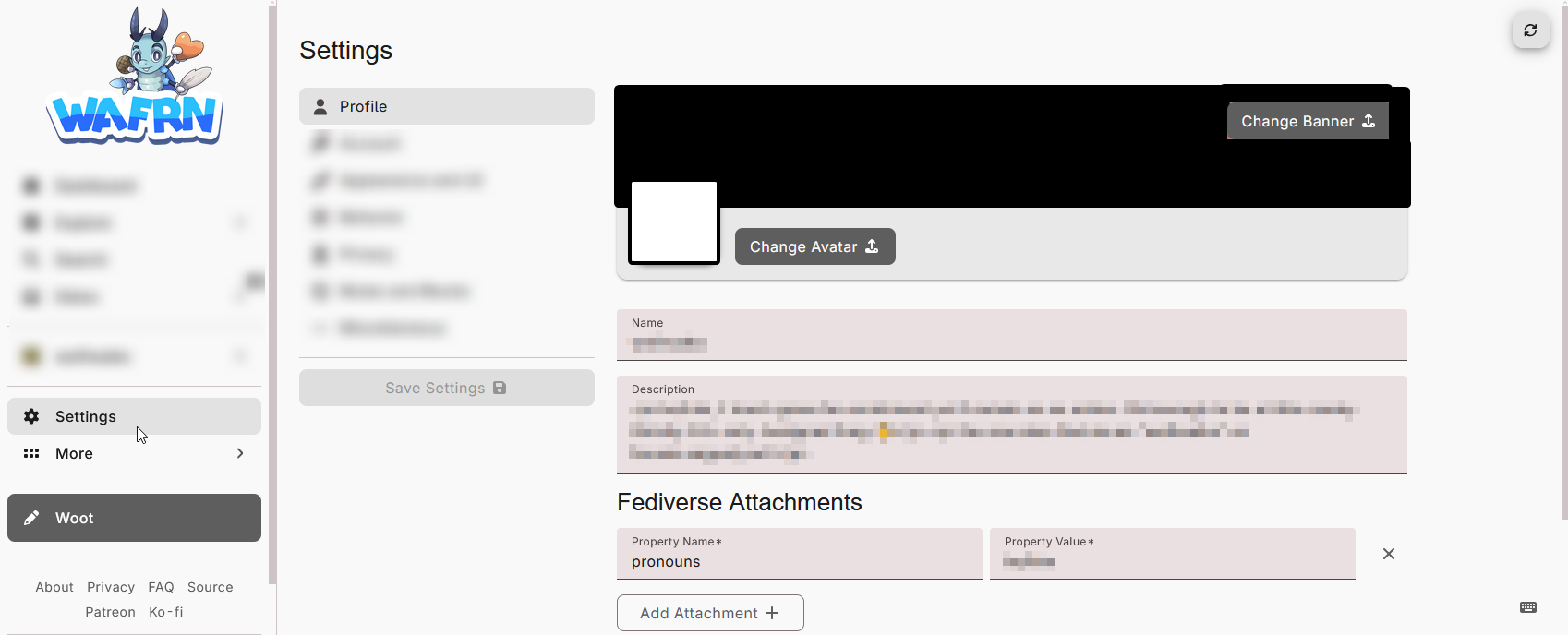
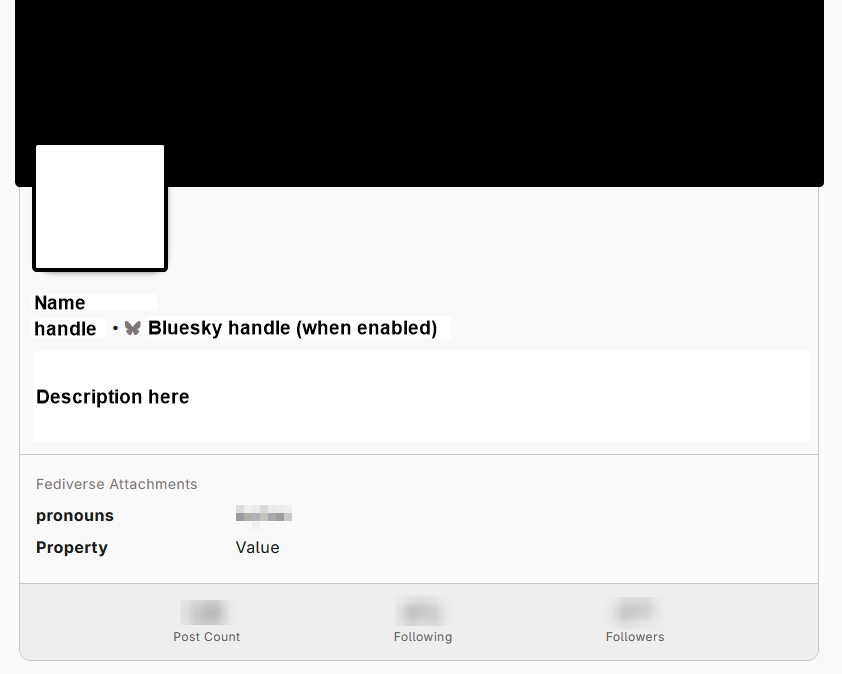
Here, you can choose a profile picture and a cover photo to display on your page.
You can also change your display name - this is the one people will see most prominently on your posts.
To tell people about yourself, you can fill out the Description field. This field accepts HTML/Markdown formatting and WAFRN-custom emojis, just like Posts.
For more information about how Bluesky integration impacts your profile, see the Bluesky guide.
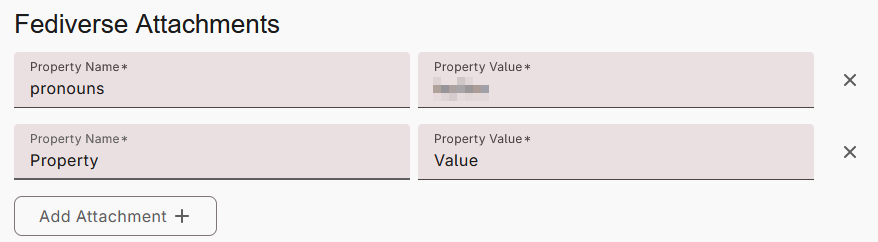
Fediverse Attachments are extra fields that display on federated social platforms. These can be used for literally anything. The property name will show up in bold. The property value will show up as standard-weight text. You can decide how you want to use these.
Some people on the fediverse - and some on ATproto - have software that shows a user's pronouns next to their name on their posts. The software will read the user's profile for a Fediverse attachment named "pronouns", and will then display the associated value. So, if you want to make your pronouns more visible to at least some people on the Fediverse/ATproto, you can use that too.
Profile Privacy
To change the way your profile functions, go to "Settings", then to the "Privacy" submenu. At the top, you will find the "Profile Privacy" section.
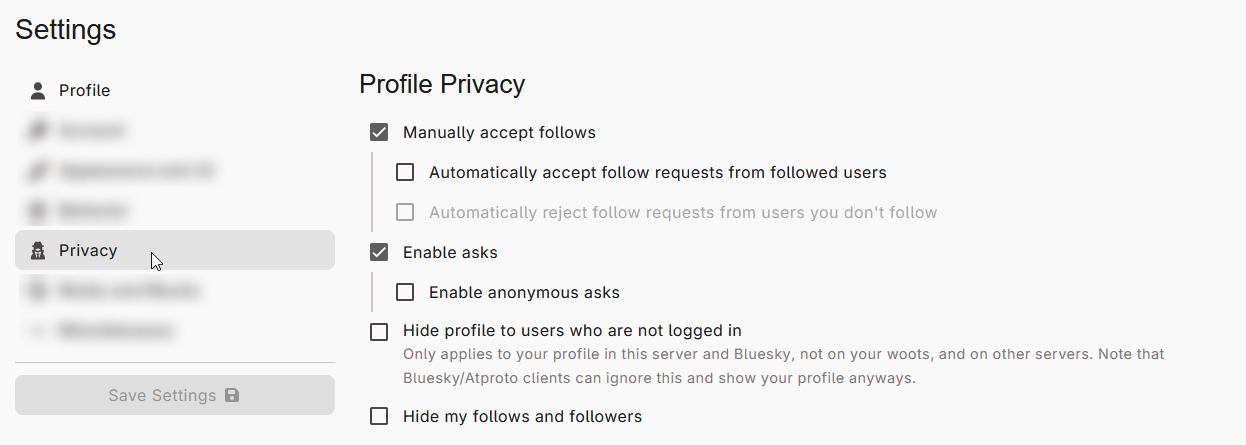
Here, you will find options to control:
- Who can follow you, and how much control you have over it
- Whether you receive asks, and how people can send them
- Who can see your profile on WAFRN and Bluesky (if enabled)
- Who can see your follows/followers on your profile
You can change these to your heart's content! If you don't end up liking them, you can always change them again.
CSS
WAFRN allows users to make custom profile themes with CSS. These custom themes sometimes break when the site updates, but generally they stay pretty intact. Note: When you set a custom theme, it will also add the custom theme to your dashboard. Other users will only see it on your profile, but you'll see it everywhere, except other users' profiles. This also means it will impact what you see on settings pages, so if you are unable to access key features of the site, you may want to remove your custom theme temporarily. If you cannot remove the custom theme or are in need of assistance, please contact your administrator team.
Here's a template to help you get started:
https://codeberg.org/wafrn/wafrn/src/branch/main/docs/theming.md
Here's another tool which might be helpful as you work: