User Guide: Posts
WAFRN users can communicate with others using posts and interactions, a broad category that includes a number of different functions. This guide is intended to help you learn the core social functions of WAFRN.
This guide was last updated on April 19th, 2026, corresponding with desktop web build v2026.04.02-DEV.
Posts (Woots)
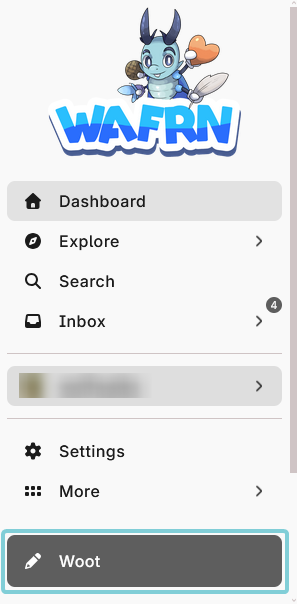
Whenever you want to make a new woot, click on the "Woot" button at the bottom of the sidebar. On mobile, you can also select the pencil icon in the bottom right corner.
This will bring up the editor. WAFRN's editor has multiple options in the upper bar.
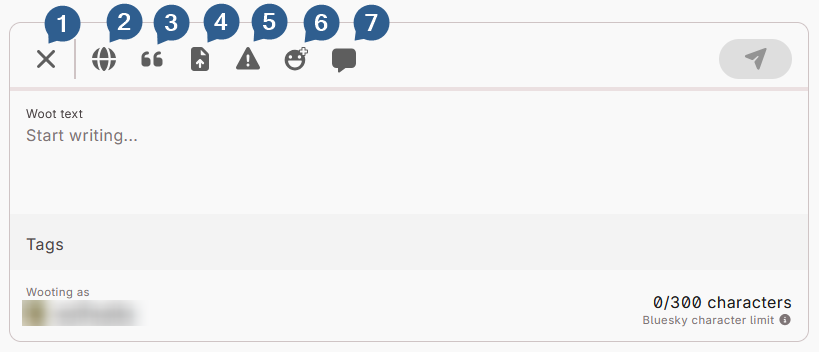
From left to right, the buttons are:
- "X" - This button closes the editor. Closing the editor returns you to wherever you were when you opened it.
- Post Privacy - This button will open the post privacy menu. When you first open the editor, it will select the Default Woot Editor Privacy setting that is selected in Settings > Privacy > Editor. Please see [INTRA-PAGE LINK: POST PRIVACY OPTIONS] for more information.
- Quote a Woot - This button will offer you a space to reference a specific post by linking it. This is usually used to add new meaning to another post, such as by adding context, commentary, or highlighting the content of the quoted post.
- Upload Media - This button allows you to add external media to your post. To learn more about the files you can upload, please see [INTRA-PAGE LINK: UPLOAD MEDIA OPTIONS]
- Content Warning - This button will offer you a space to summarize the content of your post. This can be used to shorten long posts, like a "subject line," to explain the context before someone sees the full post, or to warn others about the content in the post.
- Insert Emoji - This button allows you to add emoji, or emotes, into your post. WAFRN allows you to use Unicode-based emoji, as well as a number of custom emotes, based on what is available on your server.
- Quote and Reply Controls - This button will open the quote/reply controls menu. On instances that support these controls, including ATproto, you can prevent people from quoting/replying based on specific criteria.
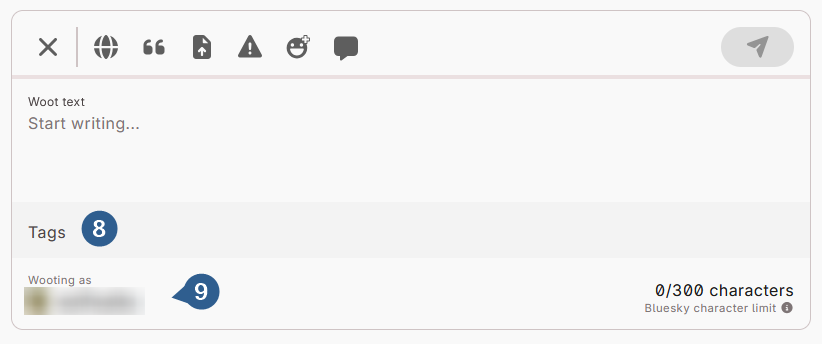
Below the post, there are two additional fields:
- Tags - This field allows you to add tags, which will appear below your post. Tags are separated by commas.
- Wooting as - This button shows you the account you are using to make a post, and allows you to change accounts if desired.
Text Formatting
WAFRN supports two kinds of text formatting in woots: HTML and Markdown. You can also use a combination of both. There are no buttons or interfaces to add formatting, so you have to write it into the post yourself. Formatting is optional, but it can make your posts easier and more interesting to read.
To learn more about Markdown syntax, you can check out DevDocs.io: Markdown or CommonMark.
To learn more about HTML syntax, you can check out DevDocs.io: HTML.
To see the HTML tags WAFRN supports, you can check this part of the source code: https://codeberg.org/wafrn/wafrn/src/commit/5c360cb68917f6d61e753e4d63a52df0cc3ab9cc/packages/backend/utils/getPostHtml.ts
WAFRN has one unique markup: in-line media placement. When you upload a file to the woot editor, that file is given a number based on the order of upload. For instance, the first file uploaded is media-1, the second is media-2, and so on. While you are drafting the post, the media is all collected at the bottom of the post, below all the text.
To place the first file somewhere in your text, just type this:
![media-1]
To place a different file, replace the number "1" with the number that corresponds with the order of the file.
When the post is published, WAFRN creates two versions of the formatting: one in HTML, and one in Markup language For Misskey (MFM). Some Fedi platforms prefer MFM, so when they retrieve your post, those platforms will see the MFM version. Everyone else will get the HTML version. You can view documentation about MFM here: https://misskey-hub.net/en/docs/for-users/features/mfm/
WAFRN has a 2MB text limit in posts by default. It's not based on character count, words, or any other metric. The 2MB limit is also solely for text, and does not factor in any media attachments. The default upload limit for media is 250MB. These limits may vary between servers.
Post Privacy Options
WAFRN has 5 levels of post privacy.
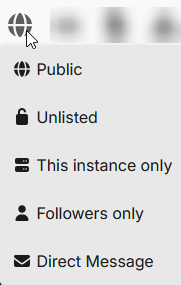
- Public: This is the broadest, most permissive level. Public posts can be found by search engines, on WAFRN or out on the internet; can be seen by anyone, regardless of login status or home server; and will appear on the feed in any compatible instance.
- Unlisted: Unlisted posts do not appear in search results or the local timeline, but will appear on your page for anyone who visits, and will appear on the "Following" feed for anyone who follows you. This level is sometimes called "Quiet Public."
- This instance only: Posts with this level will only appear on the home server of the poster. Users must be viewing the home server's page to see it. This level of privacy is still visible to logged-out users. This level is sometimes called "Local."
- Followers only: Posts with this level will only appear for people who are following you on federated platforms.
- Direct Message: This is the narrowest, least permissive level. The only people who can see this post are mentioned users and server administrators. This level is sometimes called "Mentioned-Only."
You can change post privacy in the editor interface before you select "Publish this Woot", the button with a paper airplane on it. However, once the woot is published, you can't change the post privacy. To use a different privacy level, you would need to delete and re-create the post.
When you reply to a post, your editor will "inherit" the privacy level of the post before you. You can manually change it to something lower than the post before you, but you can't make it higher than the post before you. That is to say, you can always make a reply more private than the original post, but you can never make it less private than the original post.
Quoting
When you quote a post on WAFRN, you display a copy of the quoted post underneath your text. This means your commentary appears first, any media you upload appears second (unless you use in-line media placement) then the quoted post appears.
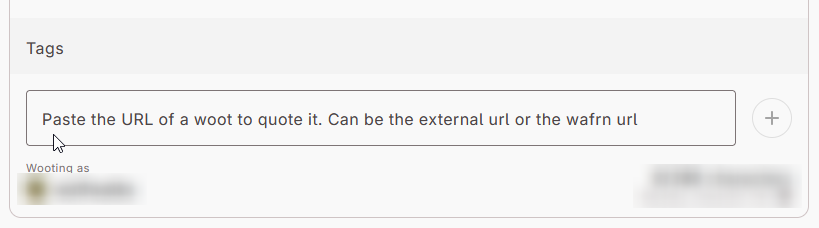
On platforms that don't support quotes, the quoted post will appear as a link, so others can follow the link and see the post you're talking about.
Upload Media Options
This is the list of file types WAFRN will accept:
- PNG
- JPG
- JPEG
- GIFV
- GIF
- WEBP
- AVIF
- AV1
- MP4
- MOV
- WEBM
- MKV
- AAC
- MP3
- WAV
- OGG
- OGA
- M4A
When you upload a file, WAFRN will prompt you for a "description" of the file. This is sometimes called "alt text". Whenever the file can't be displayed in its intended form, alt text appears. For example, if you are viewing your WAFRN dashboard with a weak connection, the images may be slow to load, so alt text will appear where the image is supposed to be. Alt text is load-bearing for people who use screen readers to navigate the web, including blind people.
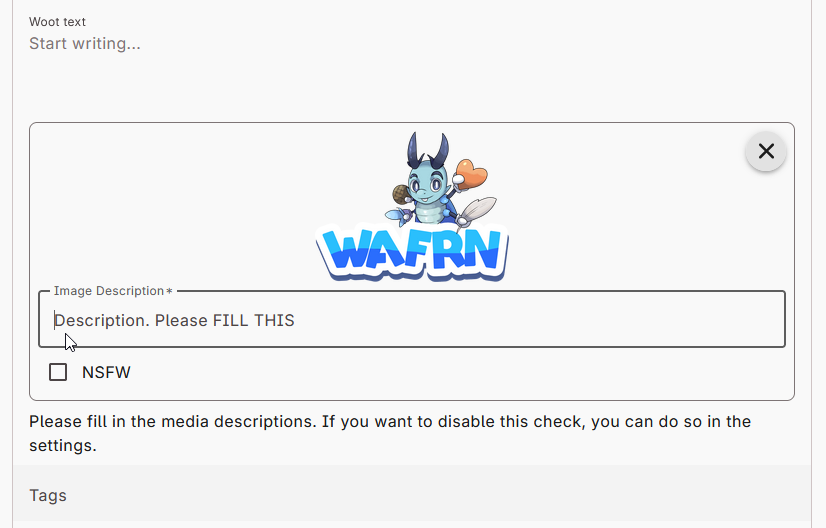
In the interest of accessibility for all, WAFRN requires alt text by default. Access to information should not be contingent on being able to see or access files. This can be overwhelming for people who aren't used to describing their files, because they aren't sure where to start. What information is important? What should and shouldn't be written?
Here are some general pointers:
- If you were to describe this file to someone who could not stop to look at it, or listen to it, how would you describe it?
- You can write alt text based on what you notice about the file, but try to avoid judgements/opinions. Write about what's there.
- If there is text in the image, in most cases, it's good practice to write out all of the text.
- If the file is a screenshot of another page, and you link the page in your post, you do not need to write out all of the text.
- Some files can be described with 1 sentence, but others are best described with 2-3.
- Write what's actually there - if there are curse words, unsavory words, or otherwise challenging language, write it as it appears. If it's not censored in the file, it should not be censored in the alt text.
For more information, check out the following guides:
- BluePixelComputing's guide, "Writing good alt text on the Fediverse."
- Veronica With Four Eyes' guide, "How to write alt text and image descriptions for the visually impaired."
- Harvard University Information Technology's Digital Accessibility Services, "Write helpful Alt Text to describe images"
Media upload considerations
WAFRN posts will allow you to upload a theoretically unlimited number of files. However, Mastodon users will only see the first 4 photos you upload, without any indication that there might be more than 4 photos attached to the post.
If Bluesky is enabled (see the Bluesky guide), Bluesky users will see posts that have 4 photos, but if a post has 5 or more photos, they will see a link to view the post on WAFRN.
For more information about posting with Bluesky integration, see the Bluesky guide.
Content Warnings (CWs)
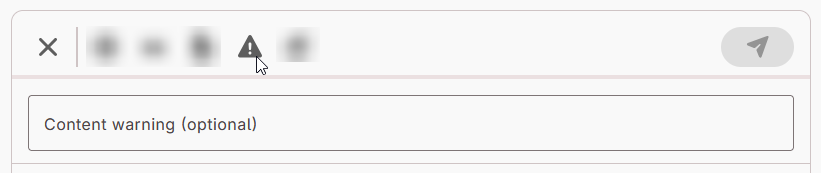
Content Warnings serve a variety of functions. For content which may be sensitive in nature, due to being upsetting or disturbing to some people, Content Warnings provide advance notice of the content inside the post before it is viewed. Content Warnings can label nudity and sexual text/images, making the overall site safer to browse in public. Content Warnings can also be used as a "subject line" or "post cut," as a courtesy to other users when the post within is longer than usual, or simply to maintain a neat, organized atmosphere on your page.
A woot with a Content Warning would look like this:
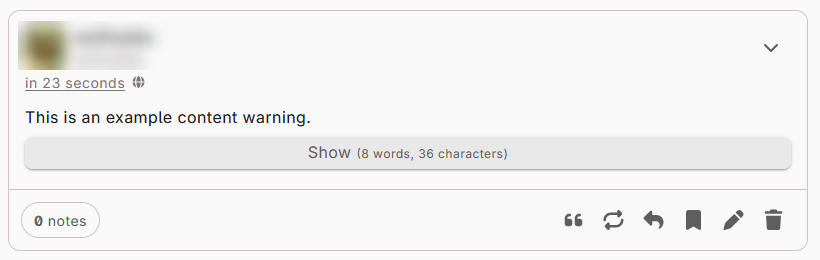
There is no restriction on how many content warnings you can use. There are also no penalties for using them. WAFRN does not have an algorithm, and does not penalize you for posting anything, so long as it abides by your home server's rules and applicable laws. Content warnings are a tool WAFRN provides to make social media more peaceful, and to center consent, so you can use them as much as you want.
WAFRN encourages the use of content warnings. For more information, please see your instance's "about" page.
If you are replying to a post with a content warning, and you want to remove the content warning from your reply, erase whatever is in the box. You can also modify the content warning in case the previous one is not relevant to the contents of your reply.
Emoji
WAFRN offers a combination of custom emoji and unicode emoji. You can access all of these options, together, from the emoji menu at the top of the woot editor. You can also type or copy-paste unicode emoji ("keyboard emoji"). Custom emoji can be selected by writing the name of the emoji, surrounded by colons, for instance :cat_smoke: . When the woot is published, the custom emoji will be shown where the written words were placed. Custom emoji names can be auto-completed by beginning a phrase with a colon, typing the first few letters, and then selecting the correct emoji.
These custom emoji appear reliably on WAFRN, and appear on most external, compatible servers.
Quote and Reply Controls
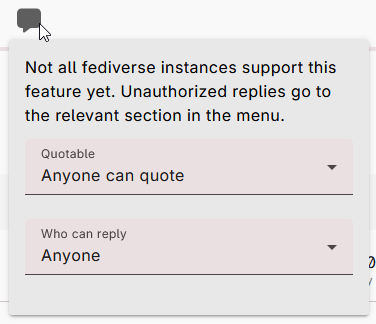
WAFRN allows you to limit the group of people who can quote or reply to a post. As the text on the dialogue box states, this is not universally supported across all instances. However, some servers, including ATproto, will lock down the quote or reply buttons for you, if you make changes in this section.
"Quotable" has two options: "Anyone can quote" or "Not quotable".
"Who can reply" has five options:
- Anyone
- People I follow and mentioned users
- My followers and mentioned users
- Following, followed, or mentioned
- Only mentioned users
Like post privacy, reply controls "carry forward" in the chain of replies. When you reply to a controlled post, your reply inherits the previous post's level of control. You cannot reply with "more permissive" controls, but you can reply with "more restricted" controls.
You can quote a reply-controlled post, which will allow you to choose a more permissive level of control.
Quote controls do not "carry forward" in replies or quotes. If you want your post/reply to be quote-controlled, you will still need to select the appropriate level of control. Also, quote controls do not apply to you, the original poster - you can quote your own posts whenever and however you want.
WAFRN uses GoToSocial's interaction controls on Fedi, and Bluesky's interaction controls on ATproto. These tools are used by many other platforms on both protocols.
Tags
Tags on WAFRN are used for many things. The most basic function of a tag is search capabilities. For instance, if a post is tagged with #dog, then a search for "dog" will easily return the post. Tags are always comma-separated, and you do not need to add the number sign (#). WAFRN will add the number sign for you once the post is published.
Tags can also be used to search posts by a specific user. For instance, if a post is tagged #my-art by WAFRN user gabboman, Searching my-art with the Advanced search option filtering on, specifically for WAFRN user gabboman, will locate all the posts by that user with that tag.
On WAFRN, tags are most searchable if they have no space between words, or if they have hyphens between words. WAFRN recommends using CamelCase - capitalizing the first letter of each word in the tag - if your tags have no spaces between the words. This makes them more legible, and easier to read with text-to-speech functions.
On WAFRN, it is possible to put spaces into your tags. On other, connected servers, these spaces are converted to hyphens, but WAFRN will not recognize them this way. This would create a tag which could not be used for searching.
Auto-Tag
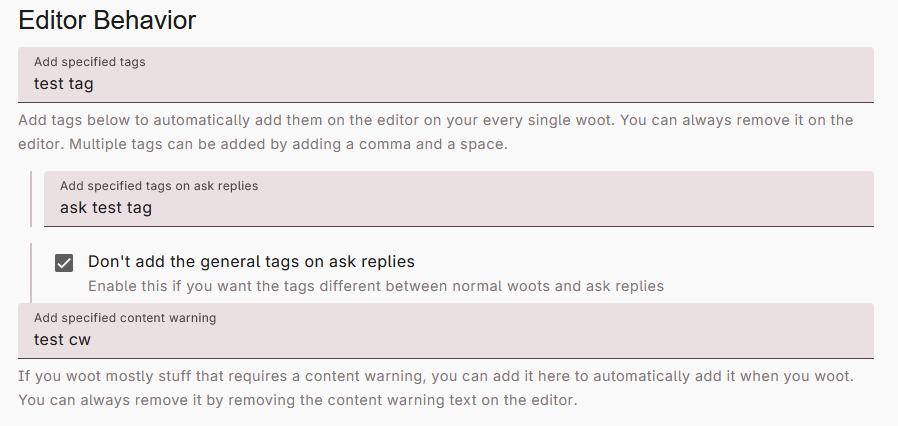
If you want to add a tag to everything (or, most things) that you post, you can set default tags for your posts, asks, and replies. You can also add a default content warning, if you want a content warning by default on your posts, asks, and replies.
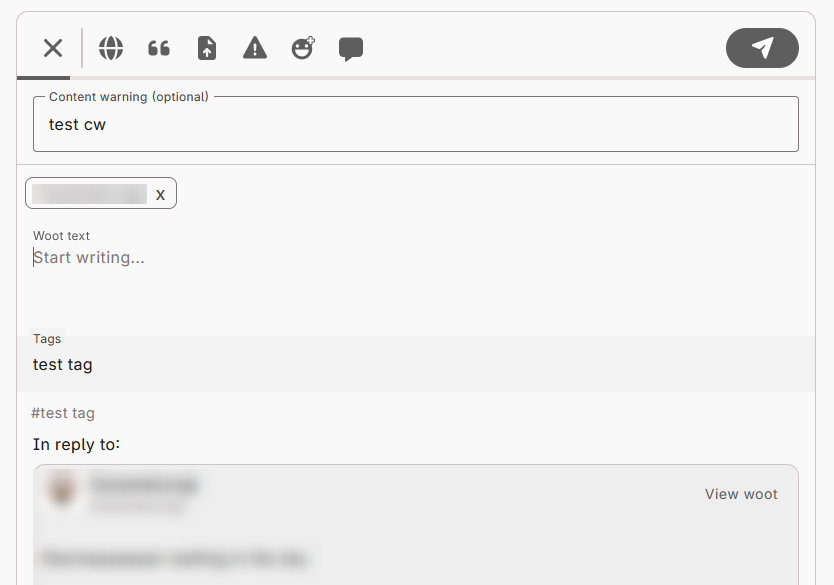
When enabled, these options appear like the post below:
Account Switching
It is possible to maintain multiple WAFRN accounts on the same server. If you have multiple WAFRN accounts on the same server, you may wish to switch between them.
You can switch the wooting account in two ways. The first option is to select the account in your sidebar, under "Other accounts," and select "Switch to account." This will change all of your feeds, and your default wooting account, to the new account.
The other way is to change the account in the woot editor. Select the account in the bottom left corner, which will activate a dropdown menu of your available WAFRN accounts. Then select the account you wish to woot from. This one-time change will not alter your feed, but it will create the woot on the desired, alternate account.