Guide: Feeds and Safety
WAFRN is designed to respect the way you want to experience social media. You have many options to view and interact with your feed and the people in your sphere. This guide is intended to help you navigate the WAFRN interface.
This guide was last updated on April 7th, 2026, corresponding with desktop web build v2026.03.04-DEV.
Navigation
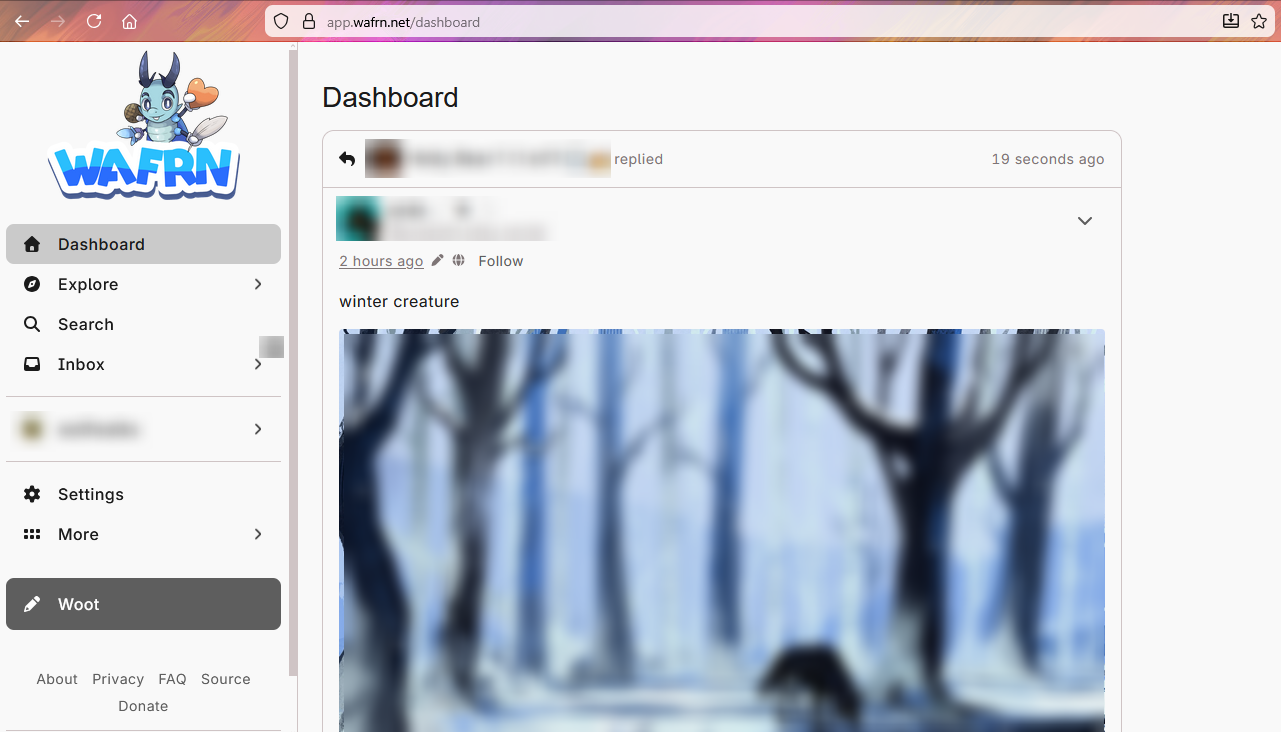
This is your dashboard! When you load WAFRN after logging in, your dashboard is the page that loads. Your dashboard is comprised of any users you follow, no matter what their "home" server is. This means you can follow other users from your home WAFRN server, other WAFRN servers, other Bluesky servers, and other federated servers. They will all show up here, on your dashboard. The dashboard displays posts in reverse-chronological order, showing you the most recent posts first.
On WAFRN, you have several different feeds you can choose from. Below the "Dashboard" button on the left, you can select the "Explore" button, which will expand a dropdown menu.
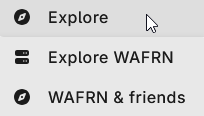
You can then choose between Explore WAFRN and WAFRN & Friends.
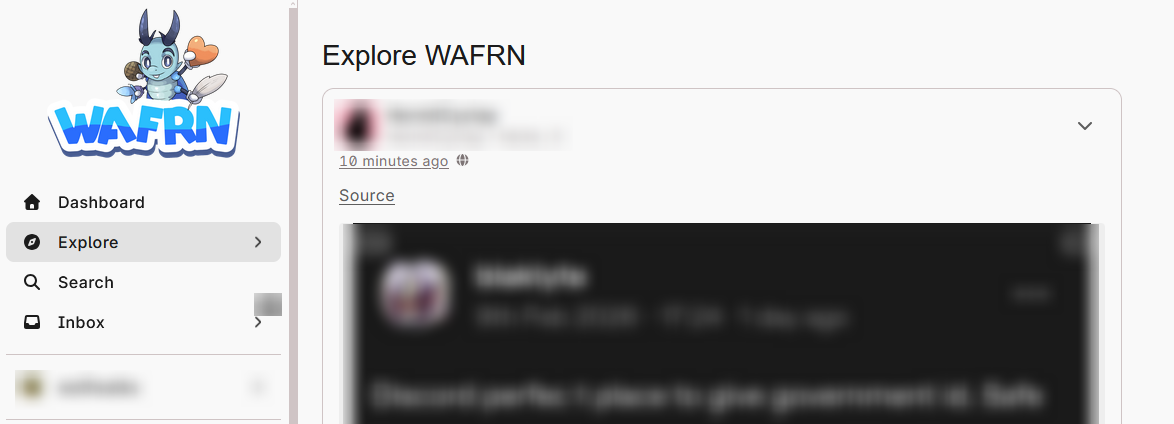
Explore WAFRN is a feed that shows you only people on your server. This is also sometimes called the "local feed," because it only shows people on your home server. Explore WAFRN is a great place to find new people to follow because it shows a smaller subset of people who chose the same server you did, so you have at least one thing in common with them. This option may be re-named by server administrators.
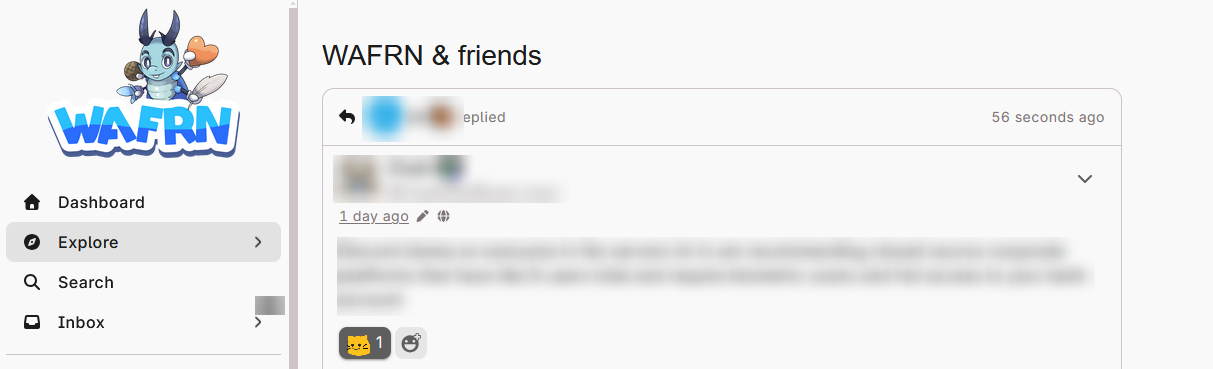
WAFRN & Friends is a feed that shows you a curated selection of servers, chosen by the site administration of your server. This includes your home server, but it also includes some other servers. These other severs are selected based on things like similar moderation criteria, common server connections, or similar topic focus. "WAFRN & Friends is also sometimes called the "bubble feed," because it's larger than the "local feed," but still offers you ways to branch outside your home server. To learn about which servers are included in your bubble instance, visit your server's "About" page to view the list of "bubbled servers".
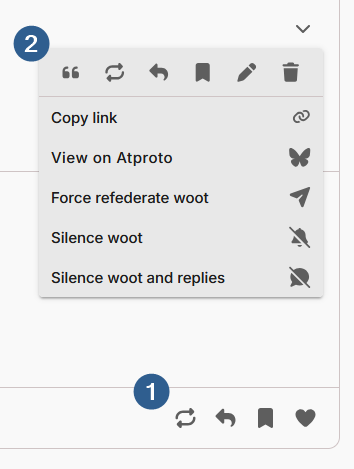
Every post has multiple interaction buttons. Some of them are available at the bottom of a post for quick access, and some are hidden in the dropdown menu at the top.
To learn more about interaction options like the ones shown here, visit the Interactions Guide.
Customization
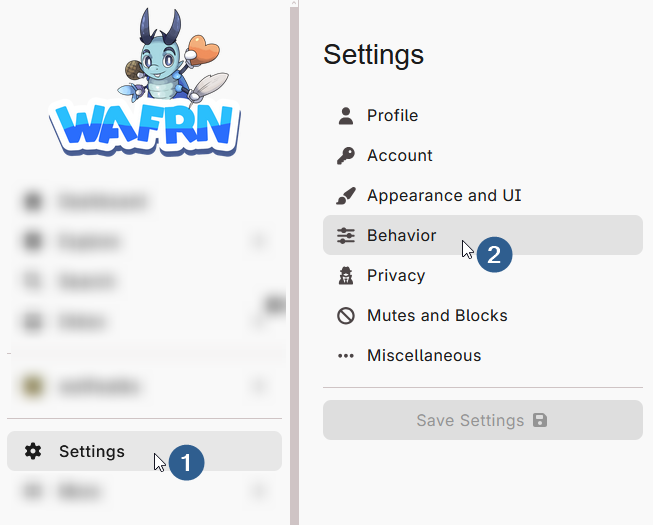
WAFRN offers you different ways to customize your feeds. You can access these by going to Settings in the left-hand sidebar. In this tutorial, we'll start with the Behavior submenu of Settings, but the "landing page" for Settings is always your Profile submenu. You can adjust your settings in any order.
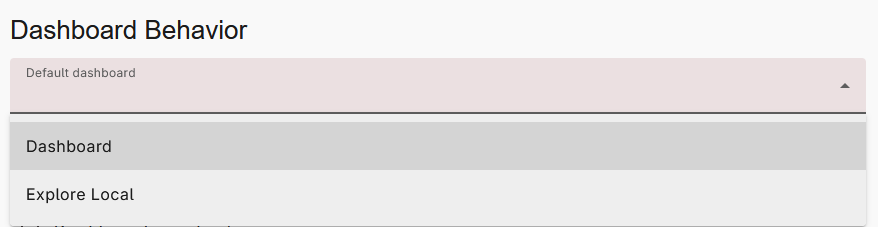
You can choose whether you want your homepage to automatically navigate to the Dashboard or to Explore WAFRN. No matter which one you choose as default, you can always navigate to the other one using the sidebar.
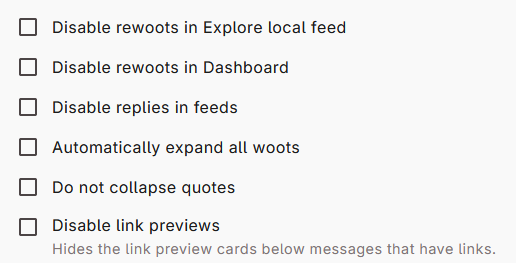
These options help you choose how you see posts in your dashboard. You can select some or all of them, if you want to, but they're entirely optional. You can also change them at any time.
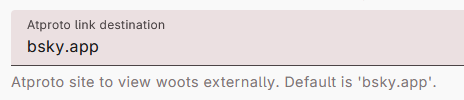
This field offers the option to change how you open "external links" to Bluesky posts, including your own. If you have another preferred interface, you can put the link here, and WAFRN will let you open those posts in that preferred interface.
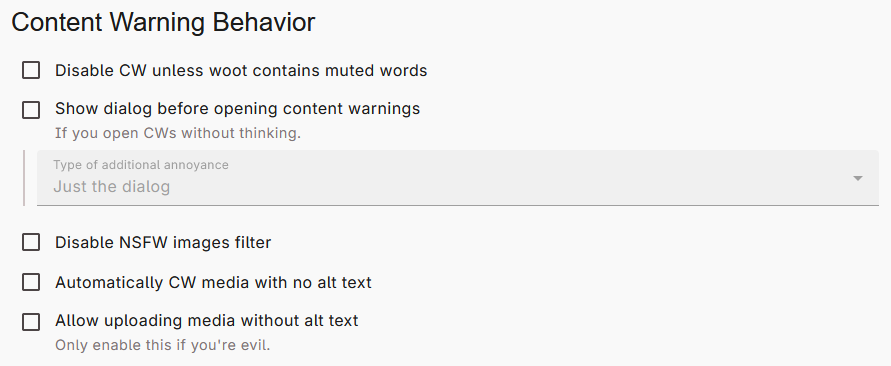
This section includes Features for Content Warnings (CWs). Content warnings, sometimes also called Content wrappers, serve different purposes for different people. These WAFRN features empower you to decide how you engage with them, even if that means you never want to see them.
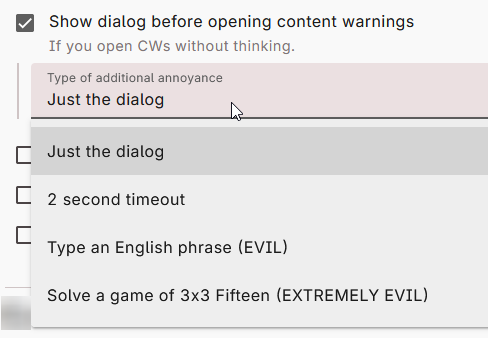
Show dialog before opening content warnings is a setting that aims to prevent habitual post-opening. It's off by default and completely optional, but some users find it helpful. You can choose the level of obstruction based on what suits you best, or, if you don't want it, just leave it off.
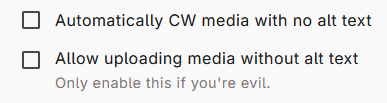
"Automatically CW media with no alt text" will collapse posts that include images, video, and audio without alternative text.
Allow uploading media without alt text will disable the default WAFRN reminder to add alt text. The reminder is default because it helps us create a more inclusive social experience, but WAFRN also understands that not everyone has the capacity to add alt text to everything they post.
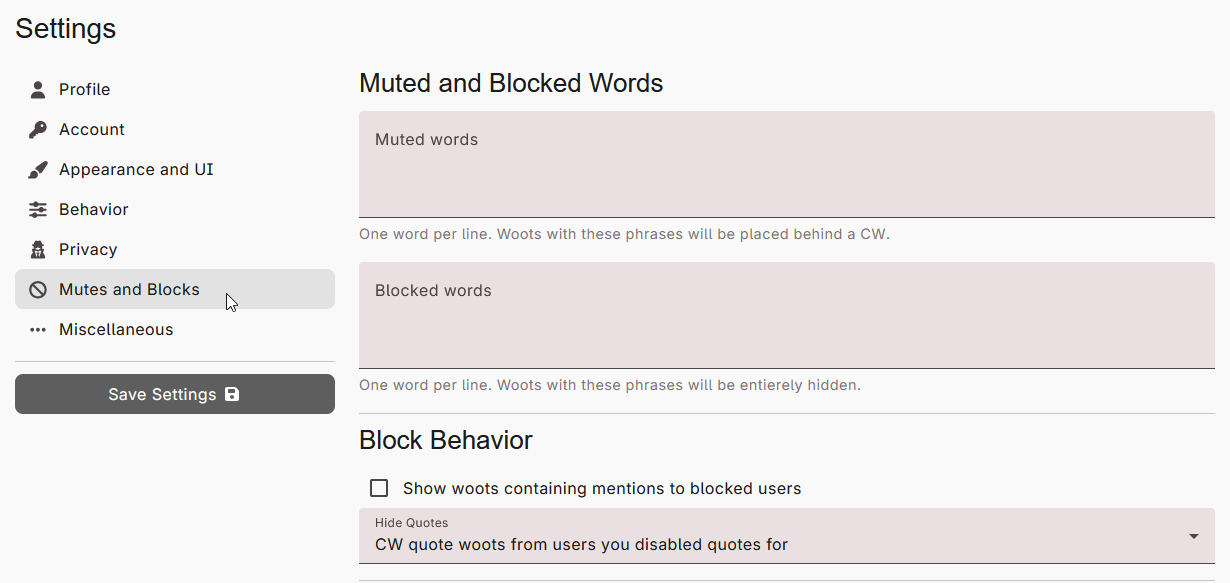
The Mutes and Blocks submenu includes safety tools for your online experience. Mutes and blocks can be applied to users or words/phrases as you see fit.
Muted and blocked words change how you see your own feed, but they do not change anything for other users. Muted words will add a content warning to the post where they appear. Blocked words (also called "supermute") will hide the post entirely, as if it never existed. The only exception to this is if you post something with a blocked word. If you post a blocked word, a content warning will be added to your own post, but the post will still appear.
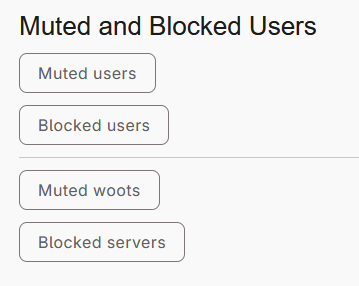
Muted and blocked users change how you interact with others, which can change how they experience interactions with you. Muted users will not show up on your feeds (Dashboard, Explore WAFRN, WAFRN & Friends) or notifications. Muted users cannot see if they've been muted, but they might be able to figure it out based on how you interact with them. You can still see their posts on other users' pages, and you can still visit their page. If you're following them, or if they follow you, the following relationship is preserved.
Blocked users will not show up on any of your feeds, will not show up on others' pages, and you won't be able to see the posts on their page. Blocked users can see when you have blocked them if they visit your page. If you're following them, or if they follow you, the following relationship is severed.
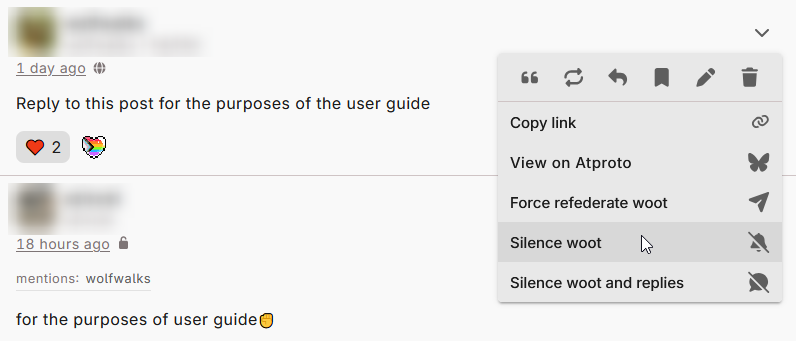
You can also mute woots and block servers.
Muted woots are also called "silenced posts." You will no longer get notifications for that post. The settings screen allows you to access and change muted woots, but they end up here because, at some point, you selected "Silence woot" or "Silence woot and replies" on the post's menu.
Blocked servers are exclusive to Fedi connections. If you don't want to see any posts from a particular Fedi server, you can block the whole server. Like Muted woots, servers only show up here if you choose to block a server from a user's profile.
To learn more about additional settings you can use to change how your WAFRN looks, check out the Appearance & UI guide.