Guide: Appearance and UI
WAFRN offers you many options to change the way you see and experience the site. This guide will focus on the Appearance and User Interface settings available on WAFRN.
This guide was last updated on April 7th, 2026, corresponding with desktop web build v2026.03.04-DEV.
Themes
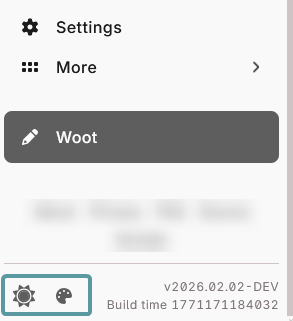
The standard WAFRN interface includes two basic appearance settings: light/dark mode and theme options. The sun icon allows you to choose between Light mode, Dark mode, and Auto. "Auto" will change to Light or Dark mode depending on your system settings.
The palette icon allows you to select one of a list of themes.
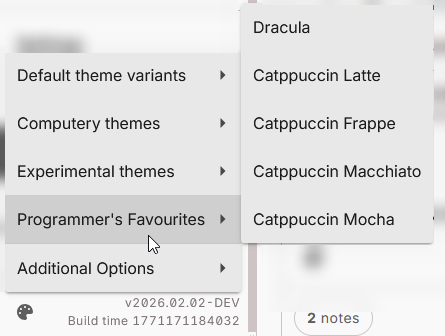
Some of the themes are basic variants on the default WAFRN theme, changing the colors but keeping other features mostly the same. For example, this is the "Green" theme under the "Default Theme Variants" submenu.
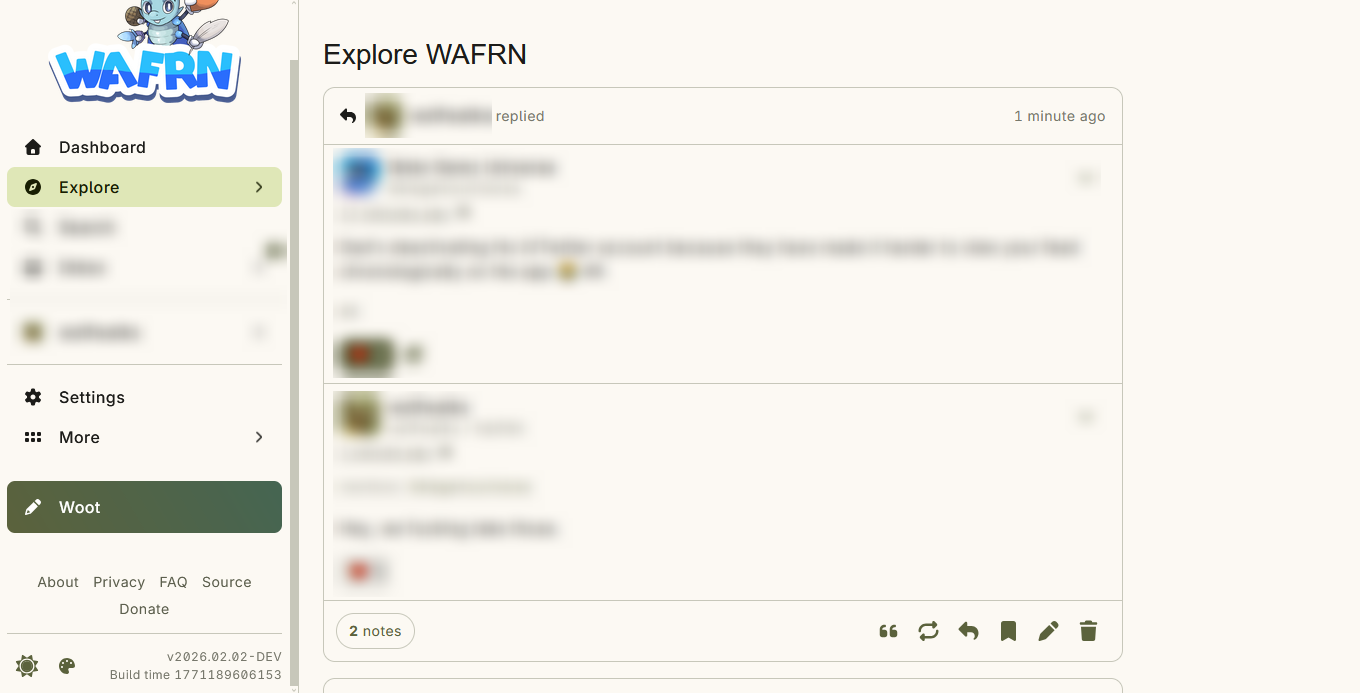
Some change the site dramatically, such as the "Aqua" theme under the "Computery themes" submenu.
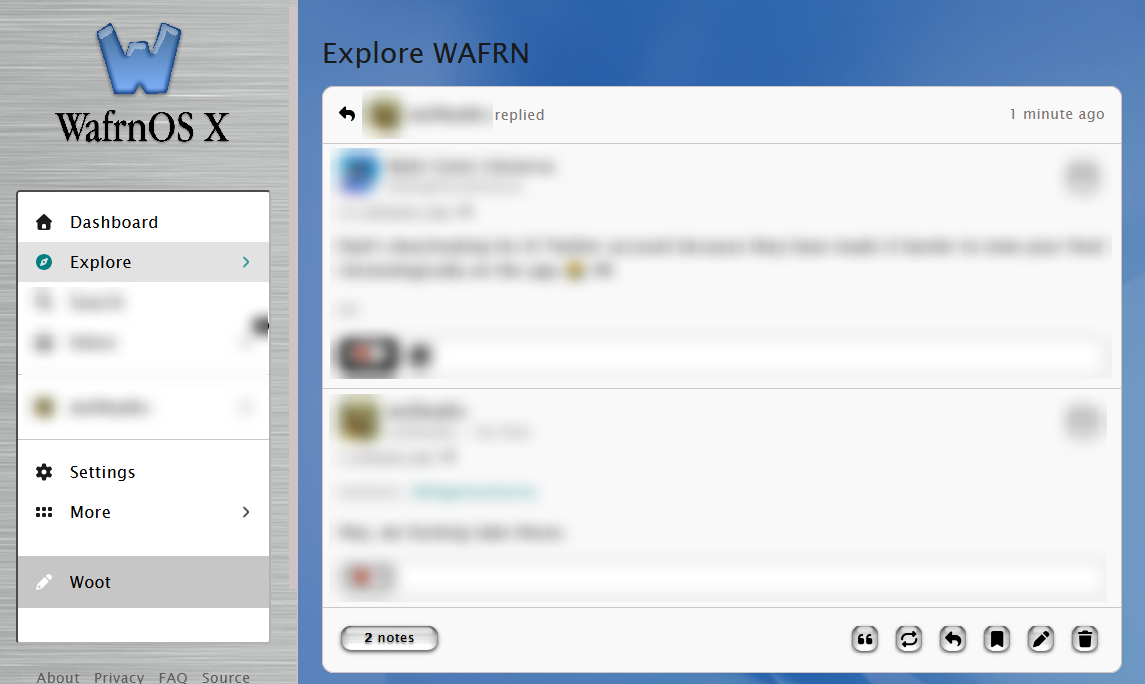
Some themes look better in light mode rather than dark mode. When you select the theme you want, WAFRN will select the appropriate "light" or "dark" mode setting to pair with it. You can always change this if you prefer it a different way.
Appearance
To find more appearance options, you can go to the Settings menu, and navigate to the Appearance and UI submenu.
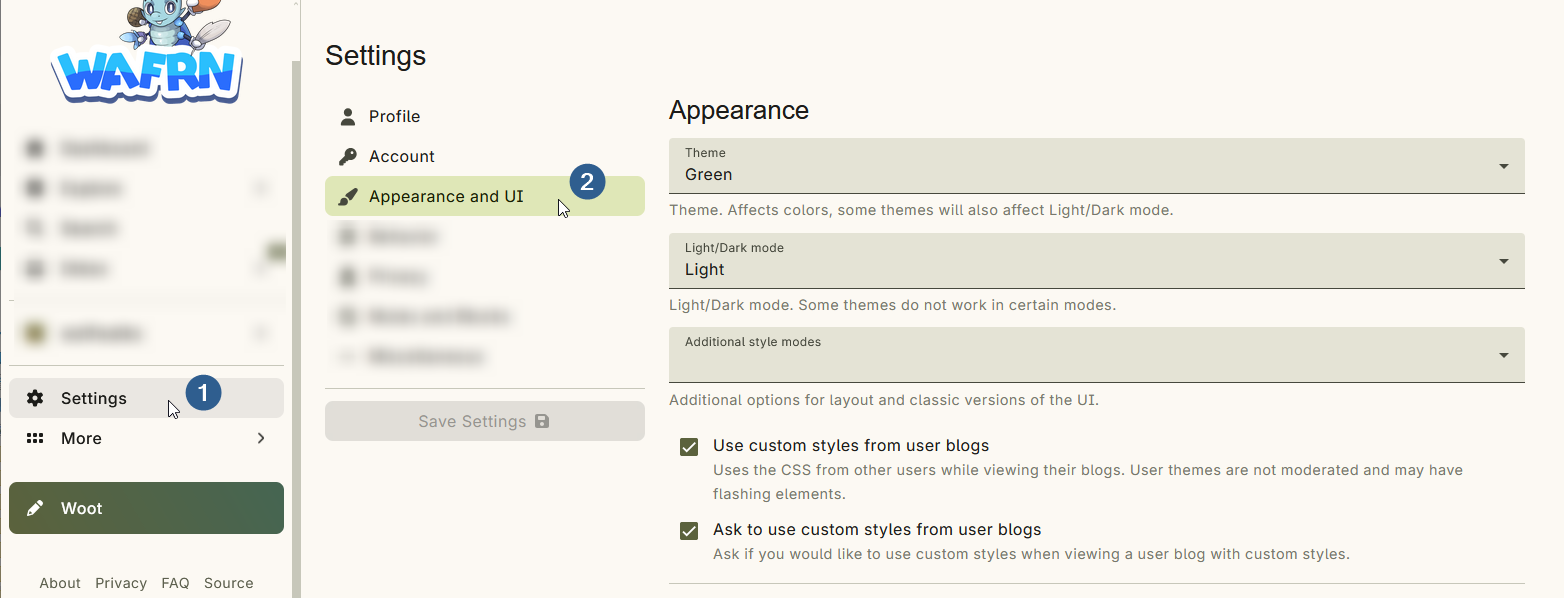
The Theme, Light/Dark mode, and Additional style modes are all the same as the options in the sidebar. You can change these settings in the sidebar, or in the settings, at any time.
WAFRN users can also create custom themes using CSS. Although custom themes retain the functionality of normal WAFRN, they can sometimes be difficult to read. By default, WAFRN will ask you if you want to use the custom CSS, where it exists. If you would prefer the option to use your own themes to view another person's page, you can leave these settings unchanged.
To learn more about making your own CSS theme, check out the Profile Customization guide.
User Interface
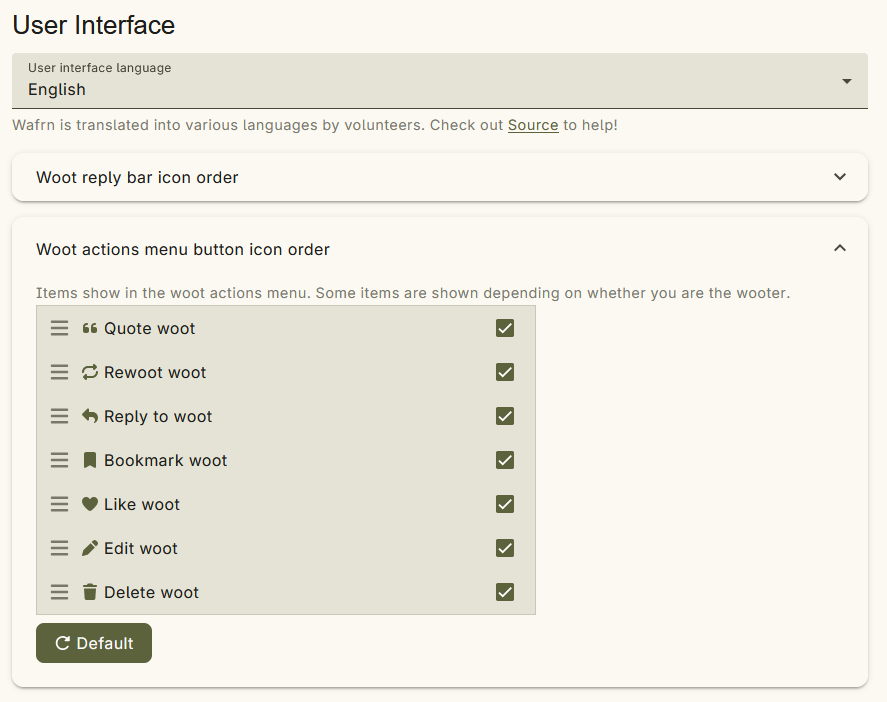
In this section, you can change the User interface language to any of the available translations. You can also change which buttons appear on posts and the action menu, and the order in which they appear.
Classic Options
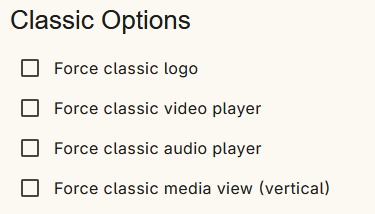
This section allows you to select alternate options for the logo, video player, audio player, and media view.
Animations and Sounds
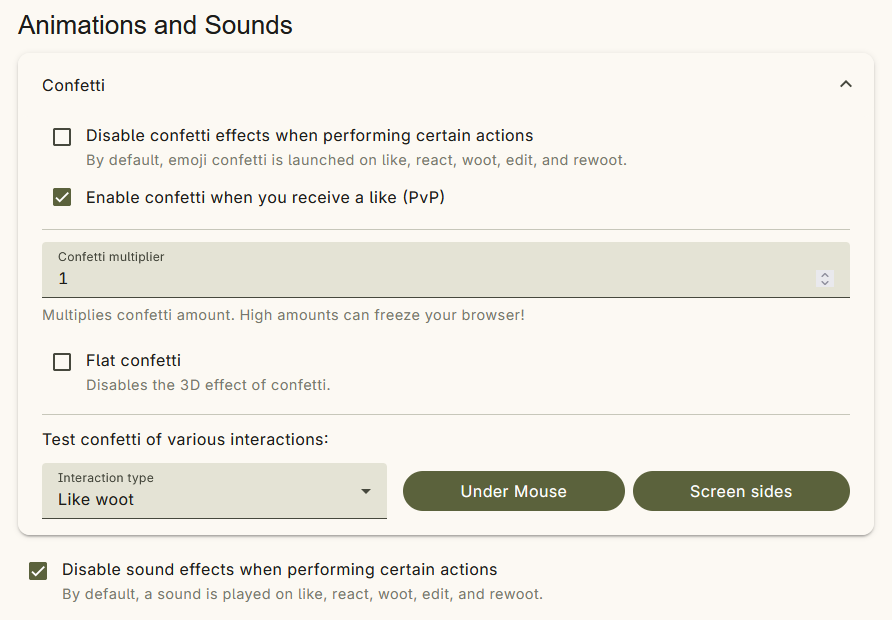
When you perform actions, your WAFRN interface can blast particle confetti onto your screen. This section allows you to control how the confetti appears, where it appears, and when it appears.
WAFRN also has sound effects! You can disable them in this section.