User Guide: Search
WAFRN has no algorithmic feed. This means when you first open an account, your Dashboard may feel empty. A default, brand-new account is usually only following the server admin, and they aren't the best conversationalists. This guide will show you how to use the Search function to curate the people & things you want to see.
This guide was last updated on April 7th, 2026, corresponding with desktop web build v2026.03.04-DEV.
Intro to Search
You can use WAFRN's Search feature to find new accounts and topics to follow. Use the button on the sidebar to access the Search page.
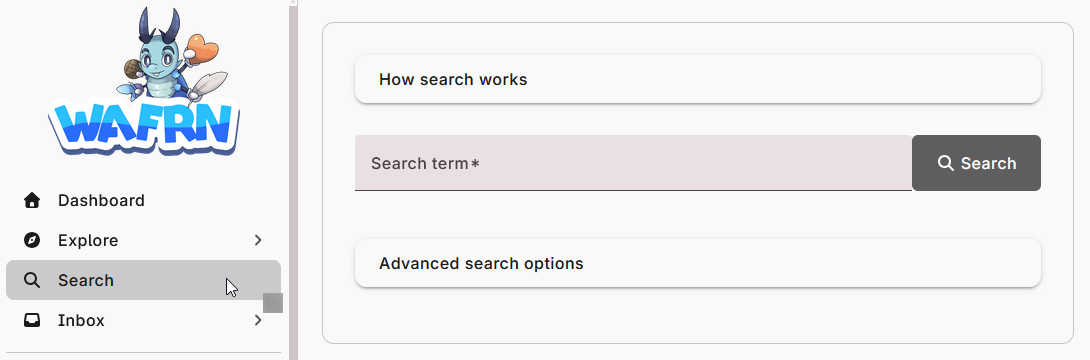
WAFRN's Search accepts inquiries for partial words and phrases, as well as specific user handles. You can also use it to find a specific post from an external server by pasting the URL. The results will display in reverse-chronolical order, with the most recent result first. The results can show both Fedi and Bluesky posts, regardless of whether you have Bluesky enabled. For more information about Bluesky features, please see the Bluesky Guide.
As an example, let's search the word "cat".
Following Tags
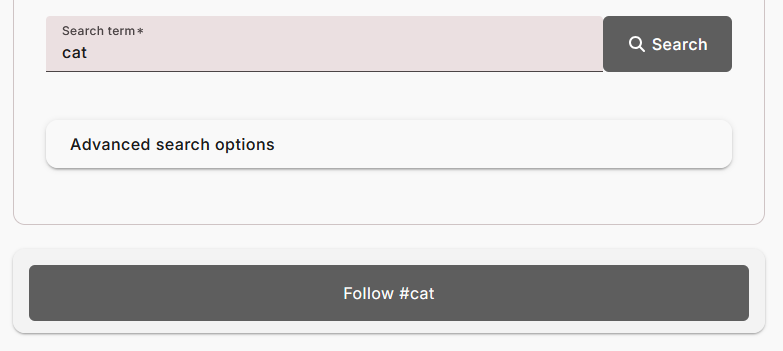
If you want to see more posts about "cat", you can click the "Follow #cat" button below the search box. This will collect any post using the tag "#cat" and put it on your Dashboard, whether or not you follow the poster.
WAFRN will not tell you if a post is from a followed tag or from a followed user. The only difference is that it may be a post from someone you don't follow, and you'll have the option to then follow that person.
Be aware, you can only follow tags if you follow at least one user. Otherwise, you won't see anything in your Dashboard.
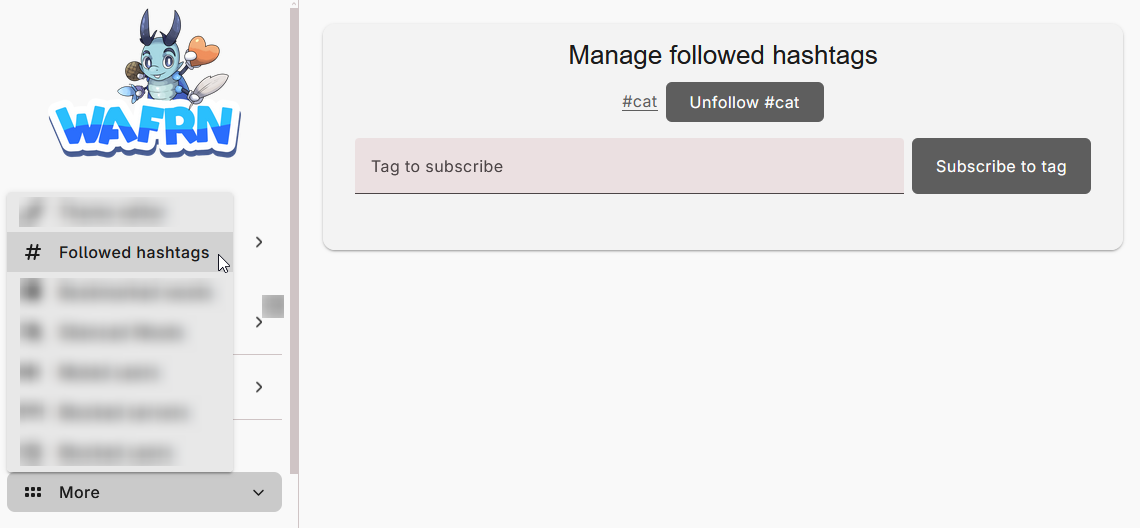
If you follow a tag, and you no longer want to follow the tag, go to your sidebar, select "More", then select "Followed hashtags". Here, you can remove tags you're following, or add some more!
Searching Posts
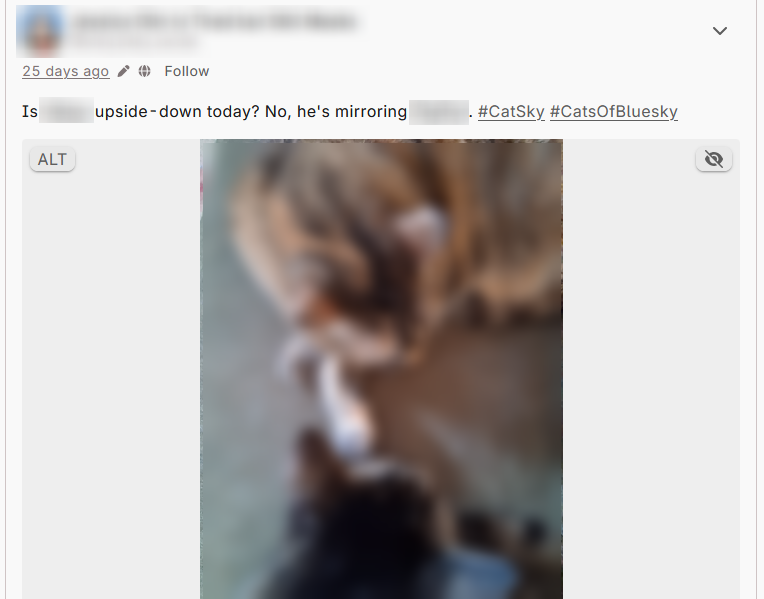
Below the following tag option, you can choose to see relevant "Posts" or relevant "Users". The default search is "Posts," unless there are no posts to show. To minimize the results and focus on users, you can use a search that begins with an @.
Posts will show if they contain a tag that includes the phrase "cat". The tag must include the full searched phrase, "cat", but can include other letters or words, such as "#cats" or "#CatsOfMastodon". The searched phrase, "cat", can be anywhere in the tag - it can be at the beginning, in the middle, or at the end of the tag. This means tags like "#BestCat" and "#BestCatFriend" will appear in search, but so would tags like "education".
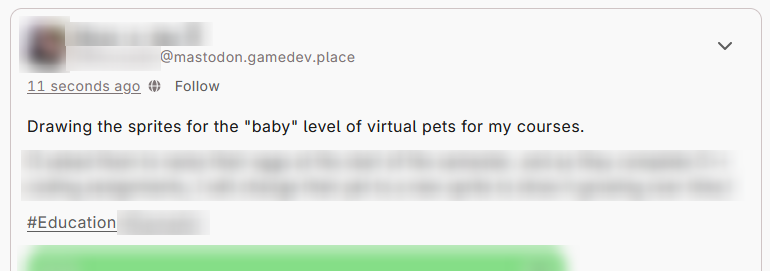
Posts do not show if they contain the searched phrase, "cat," in the text of the post, or if the user who posted it has the phrase "cat" in their handle or username. Only the tags are searched.
Posts display in reverse-chronological order, with the most recent posts appearing first, and include posts from the Fediverse and Bluesky, regardless of the your Bluesky status.
Searching Users
If we keep our original search phrase, "cat", and switch to the "Users" tab, we will find a list of relevant users. WAFRN User search will prioritize users on your home server first, then Bluesky users, then Fedi users.
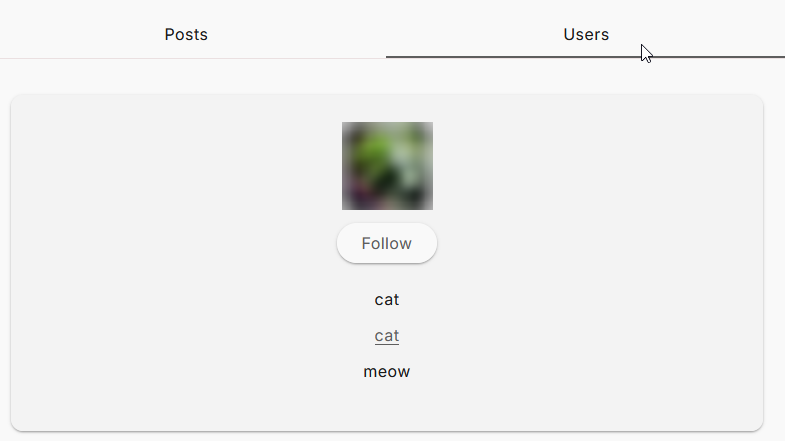
Like posts, the WAFRN search function will try to find the searched phrase, "cat", anywhere in the user's handle. The phrase can be at the beginning, in the middle, or at the end, but it must include the complete phrase, as it's written in the search bar.
Users will not show if they include the searched phrase, "cat," in their bio alone. They will not show if they have "cat" in their screen name/display name, but not their handle. They will also not show if they have the tag "#cat", or any other tag containing "cat", in their bio. The only search location is the handle.
Specific Posts
Sometimes you have a post you want to boost or like from your WAFRN account, but someone sent it to you on a Bluesky link, or a Fedi link.
In both cases, copy the link in full, and paste it into the Search bar. The only result should be the post you're looking for.
Specific Users
Sometimes you know exactly who you want to follow, but you need to find them on WAFRN.
Locate their handle. Copy the name (required) and the server + domain (optional). Type a @ in the search box, then paste the handle into the search box.
If you included the full handle, including the name, server, and domain, the only result should be the user you're looking for. If you only included the name (the first part of the handle), you may find other accounts with the same or similar names. If the @ symbol begins the search phrase, the results will include all users whose handle or server starts with the phrase.
This also means you can use @-string searching to find users to follow by Fedi instance, too! If you know a particular server you're interested in, search the server in the style of "@server.domain", and the "Users" list should then contain many users on that server.