IRC Quick-Start Guide
Internet Relay Chat, or IRC, is a lightweight chat system we use to communicate. You can learn more about IRC here: https://en.wikipedia.org/wiki/IRC
If you want to join the conversation, it's very easy! Below, you will find two guides to help you use the WAFRN IRC channels.
This guide was last updated April 19th, 2026.
Joining on browser (Gamja)
To join the IRC channel on your web browser, go to this address: https://irc.wafrn.net/
The WAFRN IRC channel uses Gamja, a web IRC client, as the default. Gamja is the interface that allows you to access IRC. It's simple by design. If you want to learn more about Gamja, you can find the original here: https://codeberg.org/emersion/gamja
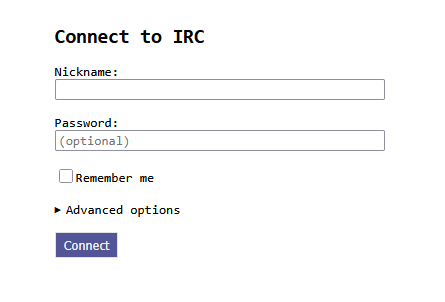
The only required field is "Nickname". You can choose any nickname you want, it doesn't have to be related to your WAFRN nickname. If you have already registered your nickname, you can input a password. Then click "Connect".
The first thing you see will be the Message of the Day (MOTD), which is set by the server. If you ever want to see this again, you can type /motd.
If you want to keep the nickname you have, you can register your nickname. Otherwise, we're all set to start chatting!
Click on "#public" on the left-hand sidebar.
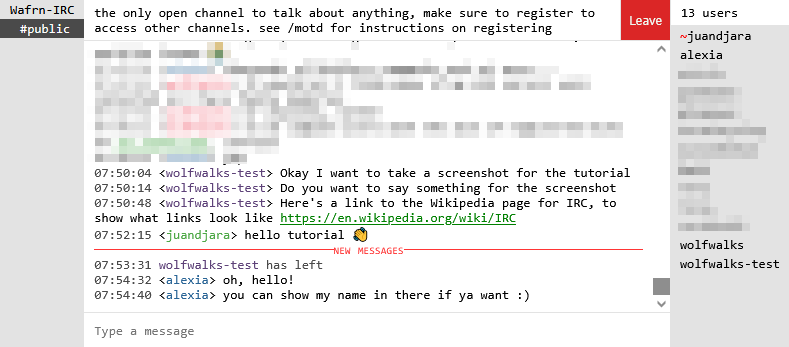
07:50:04 <wolfwalks-test> Okay I want to take a screenshot for the tutorial
07:50:14 <wolfwalks-test> Do you want to say something for the screenshot
07:50:48 <wolfwalks-test> Here's a link to the Wikipedia page for IRC, to show what links look like https://en.wikipedia.org/wiki/IRC
07:52:15 <juandjara> hello tutorial 👋
--- NEW MESSAGES ---
07:53:31 wolfwalks-test has left
07:54:32 <alexia> oh, hello!
07:54:40 <alexia> you can show my name in there if ya want :)
Usernames are shown in triangle brackets (<>), and all chat messages start with the username in triangle brackets. Actions, such as joining, leaving, or modifying channels, begin with the username alone, without brackets.
Register a nickname
When you're connected to the server, you can change your nickname using /nick NewNickname. In this command, "NewNickname" is the thing you'd like to change your nickname to. You can replace it with any name.
When you have a name you like, go to a channel in your server, and send /msg NickServ REGISTER CoolPassword. In this command, "CoolPassword" is a new password you're making for your nickname. NickServ knows what nickname you're registering because it's the name you're currently using when you send the REGISTER command. On your next login, NickServ will use that password to confirm it's you using that name. NickServ will disconnect other users who try to use the same name without your password.
When you join in the future, if you log in with a registered nickname, you'll need to enter your password. If you don't enter your password, or if you enter it incorrectly, you will be prompted to fix it before you can connect.
For more on logging in, check out the Starlight Network guide, here https://starlightnet.work/posts/irc.html
Joining channels
On the WAFRN IRC, you have to have a registered nickname to join channels beyond #public. Once you've registered, you can send /list to see the list of available channels.
You can then select to join a channel using /join #channel, where #channel is the name of the channel, preceded by a #.
More commands
When you're in the server, use /help to see a list more commands.
Joining on desktop (Halloy)
There are many different clients for IRC, but we recommend Halloy. You can find downloads and information here: https://halloy.chat/
Halloy's documentation is great for someone who feels confident with IRC, so if you feel like you're ready to jump in, you can follow the tutorials available at the linked site.
To set up your Halloy client for the WAFRN IRC server, you can use the following configuration:
[servers.Wafrn]
server = "irc.wafrn.net"
use_tls = true # default value
port = 6697 # default value when use_tls = true
You can view more examples of configurations here: https://halloy.chat/guides/example-server-configurations
If you want Halloy to automatically send your password to verify your nickname, you can add the following to your configuration file:
[servers.Wafrn.sasl.plain]
username = "nick"
password = "myPassword"
For more information and examples, see this page: https://halloy.chat/configuration/servers
To make sure everything works correctly, please list both of these config blocks, [servers.Wafrn] and [servers.Wafrn.sasl.plain]. They are not interchangeable, and combining them will cause problems down the line.
What does Halloy have that Gamja doesn't?
Halloy supports IRCv3 features, including a lot of things people have come to expect from their chat software, including:
- Reactions
- Typing status
- Read status
The full list of supported features is available on Halloy's page, here: https://halloy.chat/
Gamja doesn't have these features right now. Other clients may support all, some, or none of these features. However, Gamja is a great way to connect using a browser, which Halloy can't do. Like many things, your choice of client depends on what is best for your circumstances. If you prefer to use Gamja or another client without IRCv3, you will still be able to engage in conversation. IRCv3 simply adds a lot of quality-of-life features not present in regular IRC.
If you'd like to explore other clients with IRCv3 support, check out this link: https://ircv3.net/software/clients
General questions
Here are a few questions that may come up when you're setting up your IRC access.
What is SASL?
"SASL" stands for "Simple Authentication and Security Layer". There are multiple kinds of SASL, but we use the "Plain" SASL. If you want to learn more about it, you can check out the Wikipedia article on SASL, but most of these details aren't relevant to setting up your IRC access.
What kind of password should I use?
IRC Passwords through NickServ are stored in a hashed form in a database. If you use a client with a configuration file, they will probably be stored on your device in plain text. As a best practice, you should avoid re-using passwords that are used for other, more sensitive services.
If you like using a password manager or have trouble remembering a lot of passwords, it might be a good idea to set up an IRC client on your device, like Halloy or something else. You can write your password into the configuration file, and then your client will enter it for you whenever you open the application.
Help! I registered my nickname, but now I can't get back into it!
First, verify that all the elements you know & control are correct. For example, check the spelling of the password. If you're using a downloadable client, make sure the client supports SASL, and make sure your configuration is set up the right way.
If your client doesn't support SASL, look for the "server password" setting, and set the password to YourNickname:YourPassword.
If you're already connected, NickServ will repeatedly disconnect you until you change your nickname. You can change your nickname using /nick NewCoolNickname, where NewCoolNickname is any non-registered nickname. For example, you can probably change it to your original nickname with an extra letter/symbol/number.
If you aren't connected yet, you can modify your nickname and log in with that new nickname. That way you have access to the #public channel.
To resolve the problem for the future, you should contact administrators. You can ask for help in the #public channel. IRC administrators can reset your password and help you troubleshoot other common issues.
How can I talk to someone directly?
On WAFRN, we use @-tags to signify we are speaking to another person. On the IRC, you can still use an @ symbol, but IRC will look for the uninterrupted sequence of characters in a user's nickname. Most of the time, it will ignore punctuation after the name, like . or : or , When typing a user's nickname, you can auto-complete the nickname by pressing TAB on most clients..
This function is called "highlighting". If a user has notifications set up for their highlights, they will get a notification when you write their full name. The name will often show up in another color to show that it's a successful, functional highlight.
You can also message users on the side by using the /msg command. For example, /msg MyFriend will open a direct message channel with the user MyFriend.
Note: When you see an @ next to a user's name in the user list, that means they're an operator, or administrator.
I like writing longer messages, with paragraph breaks. How do I do that?
To send longer messages, you'll need a client that supports Multiline. Clients may vary, but on Halloy you can do this with Shift-Enter. Users without a multiline-compatible client can still see your full message.
I want to propose a change to the IRC server. How do I do that?
We have a lot of conversations about the IRC server, in the IRC server. If you'd like to propose changes, like adding a dedicated channel for some topic, you can bring it up there.
I want to receive DMs when I'm offline. How do I do that?
Contact NickServ using /msg NickServ SET always-on true
For best results, you may want to use this feature when you've registered your nickname, and you've successfully logged into the server a few times. This reduces the possibility that your nickname could be stuck always-on, without you being able to access it.
Other things to know about our server:
These traits may vary between servers, but on the WAFRN IRC server, the following things are true:
- You can use the same nickname across clients. That means whether you're connecting on Gamja, Halloy, or any other client, you can still authenticate with your same nickname. To use this feature, you need to have your nickname registered, and you'll need to be logged in on each client.
- On most clients, you will have access to chat history, so you can see conversations and highlights that happened when you weren't logged in. Some older clients, ones which do not support IRCv3 Chat History, will only be able to retrieve the past 100 messages.
- If your client is on the server, but you have not connected for 24 hours, the client will be removed from the server. The removal is not permanent, nor is it punitive. We use this rule to make sure that, if something goes wrong, your nickname isn't tied up for longer than a day.