Guide: Account Migration
Sometimes, WAFRN users may wish to move their accounts from one location on the web to a different location. This may be a move into WAFRN, or a move out of WAFRN, or even a move between WAFRN instances. This guide aims to provide information about the different methods of performing account migrations in different contexts.
This guide was last updated on April 7th, 2026, corresponding with desktop web build v2026.03.04-DEV.
Fediverse to WAFRN
WAFRN can mark your previous alias, and import your followers from a previous ActivityPub account. You can do this by going to Settings, then to the "Account" submenu.
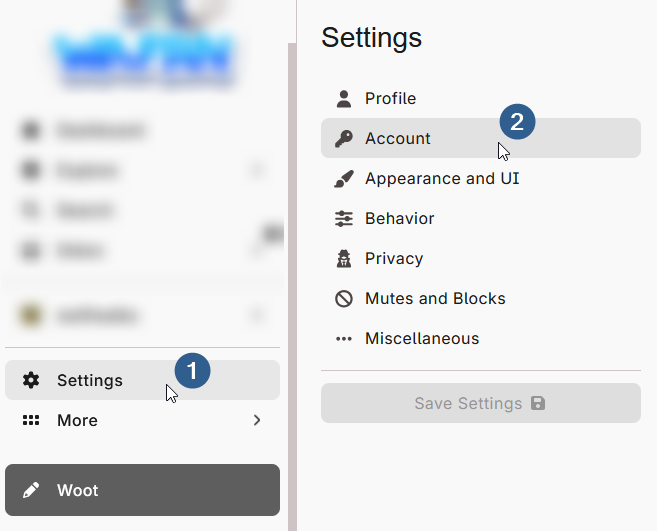
To mark your account with a previous alias, enter your previous alias in the box, then hit "save". That's it! This will display a message on your profile that lets people know what your previous account was.
To import your followers, click "Import Followers". This will take you to a new page, which will prompt you to upload a CSV. You can download this CSV from your current Fedi profile, usually available in the settings. The exact location varies from software to software.
Once you have it, upload it to the Import followers page.
Cohost to WAFRN
Many previous Cohost users have an export of their account data, including posts. WAFRN has the infrastructure to re-create those posts from the export.
To do this, inquire with your instance admin. At this time, there is no user-side import feature, but the instance admin should be able to do it.
Cohost posts all load onto WAFRN first. If you want them to federate out to the Fediverse and Bluesky, you will need to click the post menu, and click "Force refederate". This is done on a post-by-post basis, not all at once.
If your WAFRN has Bluesky enabled, it will display a badge below the post that says "Archived from [date], [time]". This is a Bluesky-side requirement, it doesn't affect anything else on WAFRN or the Fediverse.
ATproto to WAFRN
ATproto users can move their accounts to WAFRN using the PDS MOOver. To find the tools and instructions to do that, please see this page: https://app.wafrn.net/profile/migrate-bluesky
To move an existing ATproto account to connect to WAFRN, you will need to completely destroy your existing, WAFRN-linked Bluesky account, if it exists. You can do this by pressing the button on the "Migrate from Bluesky" page.
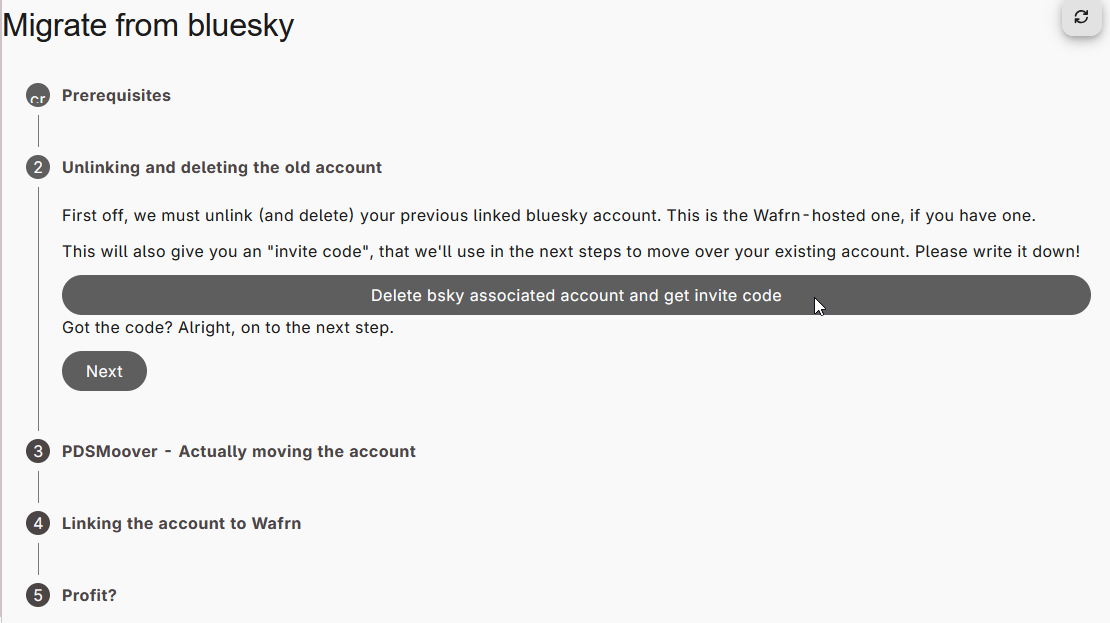
The button will also generate an invite code, which you will need to do the next step. You can also follow along with the instructions on the Migrate from Bluesky page - the "next" button does not check if you have actually completed the previous step, so you can page through as you like to get the information you need.
On the PDS MOOver, you will fill out the following information - all case-sensitive:
- Old Handle: PreviousAccount.server.domain
- Old Password (Will also be your new password): Password
The next set of information will be specific to your WAFRN instance. Your instance may style their PDS in a specific way. If so, make sure you have the correct url for the New PDS and the New Handle fields.
- New PDS (URL): https://server.domain
- New Email: email@email.com
- New Handle: WafrnUsername.server.domain
- Invite code: Code
For the last field, use the invite code generated from the "Migrate from Bluesky" page.
After filling out the PDS MOOver form and clicking “Moove”, keep that tab open. You will get an e-mail from your ATproto instance named “PLC Update Operation Requested” with a code inside. Copy the code, then tab back to the PDS MOOver. On the PDS MOOver page, paste the code, then press "OK". This should complete the MOOve.
Then, log in on the ATproto side, using the new PDS/handle, and create an App Password. To do this, go to "Settings", "Privacy and Security," and "App Passwords". Inside this page, click "Add App Password".
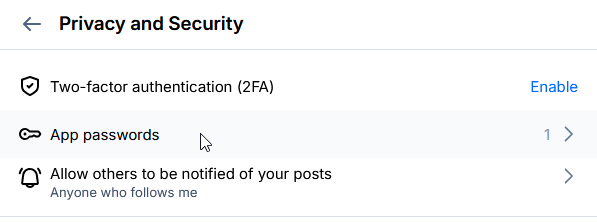
Once you have that information, go back to the "Migrate from Bluesky" page, enter your New Handle and the App Password. Then, press "Link account".
For additional reading, here is the PDS MOOver's overall explanation of how it works: https://pdsmoover.com/info
And this page contains the PDS MOOver's documentation of the risks of account migration: https://github.com/bluesky-social/pds/blob/main/ACCOUNT_MIGRATION.md#%EF%B8%8F-warning-%EF%B8%8F-%EF%B8%8F
ATProto migrations bring posts and followers along with them, so once the migration process is complete, you should have everything on WAFRN. ATproto posts backfilled to WAFRN can be visible on the Fediverse, but they won't display as "new" posts to your followers. Instead, the posts will appear in the order of their original date, so they'll be there if someone scrolls way back on your profile.
If not all of your followers and posts moved with you, you may need to force-sync your accounts. Go back to your settings, and use the button labeled "Enable Bluesky". Enter your password, and click "Enable Bluesky" to force the system to retrieve your posts and followers.
Migrations can take some time to straighten out, so you may notice after you've moved that you might miss a few notifications. It should sort itself out after a few days at maximum, but if it doesn't, contact your WAFRN administrator for next steps.
If you want a more step-by-step flow for the PDS MOOver, check out the pckt x MOOver tool, here.
If you have trouble with this process, contact your WAFRN administrator.
WAFRN to WAFRN
Much like the Fediverse-to-WAFRN migration, there is not currently a way to port your posts over to a new account on the Fedi side on your own. Because WAFRN has a Fedi arm and an ATproto arm, and the ATproto side does support moving posts, you could theoretically take the ATproto arm - if enabled - and link it to a new WAFRN, and port the posts over that way. This is very fiddly, though, and also will not capture long posts (more than 300 characters) and WAFRN formatting (such as CSS/HTML and inline media).
You can, however, contact the administrator of your "original" server to export your posts, and the administrator of your "destination" server to import your posts. This method works, but relies on communicating with both people and obtaining/transmitting those files.
You can also list a forwarding alias - your new account's name/address - and move over your followers.
Before you begin, it's a good idea to create your new profile on your new server. Make sure the account is approved and ready to go. For the purposes of these instructions, the account you are moving away from will be called the "old account," and the account you are moving to will be called the "new account."
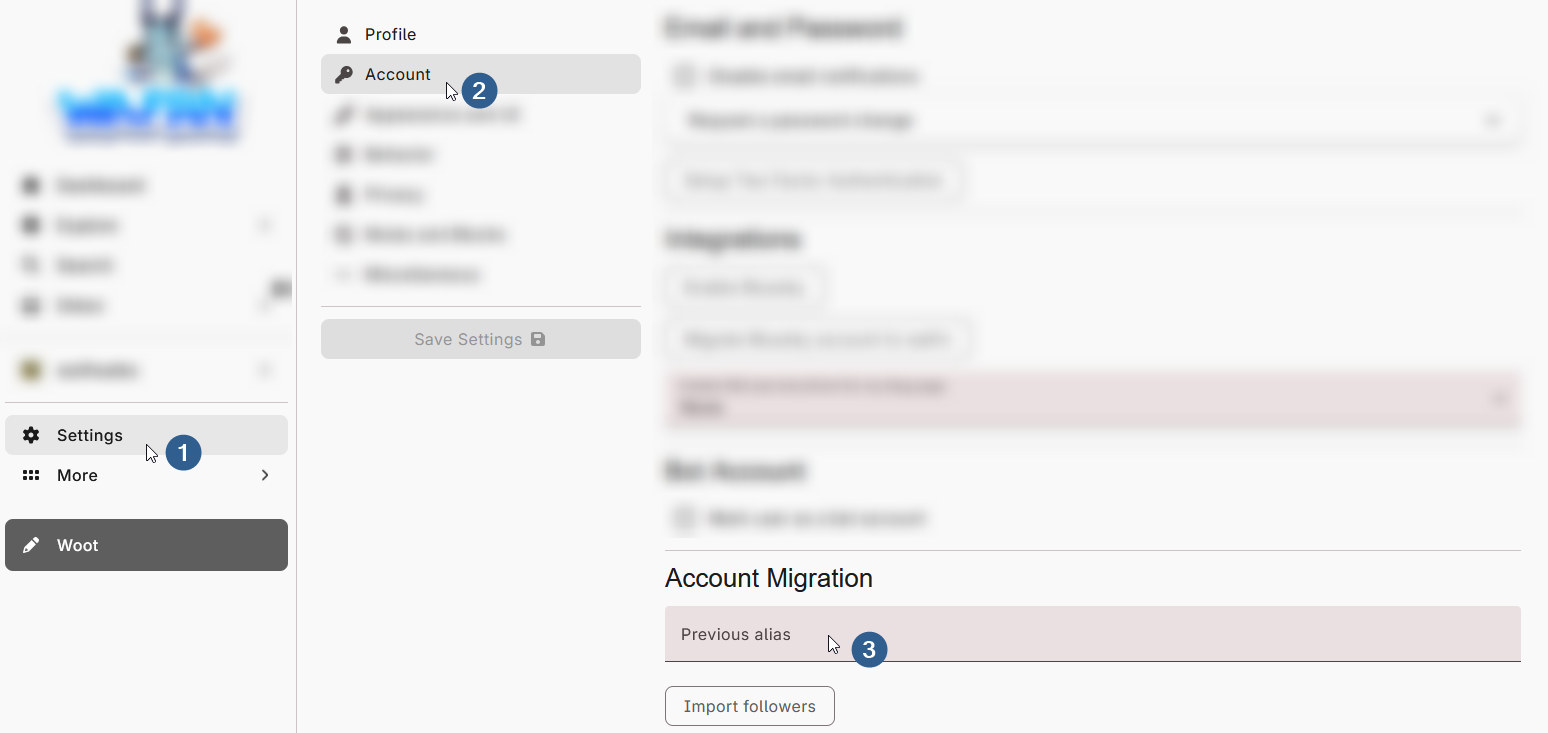
On your old account, go to the Settings > Account submenu, and find the "Account Migration" section. In the "previous alias" box, type the handle of your new account. Click "Save Settings".
Then, on your new account, go to the same submenu and do the same thing, this time writing the handle of your old account. Click "Save Settings".
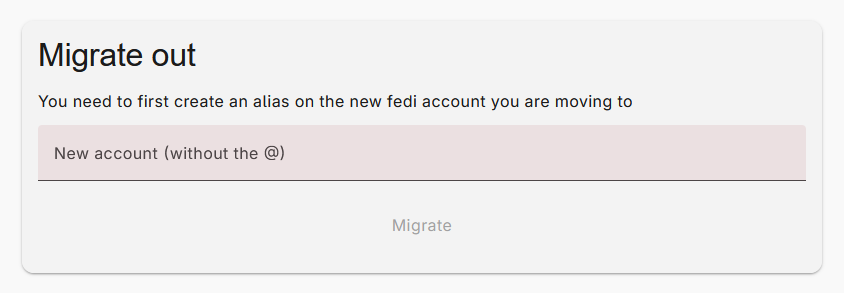
Finally, on your old account, go to "Settings" > "Miscellaneous" > "Old Settings", and click "Old settings (deprecated!!)". Scroll right on the top bar until you get to the "Migrate out" tab. Enter the handle of your new account. Click "Migrate".

WAFRN will move your followers over to the new account, and mark your old account with a banner that tells people you've moved accounts, and where to find you now.
WAFRN to Fediverse
Migrating a WAFRN account to another Fediverse account follows the same basic structure as a WAFRN-to-WAFRN migration, above. WAFRN will offer you autocomplete options in the "previous alias" box as well as the "Migrate out" dialogue from across the Fediverse. If for some reason you can't get it to work with your server/platform, contact your WAFRN administrator.
WAFRN to ATproto
WAFRN gives you full control of the ATproto side of your account. If you decide you don't want to use WAFRN anymore, you can unlink the ATproto account from your WAFRN account and just use it as a regular ATproto account. Or, if you prefer, you can use the PDS MOOver to take that ATproto account elsewhere.
To delete the app password, login to Bluesky with your WAFRN-Bluesky credentials. Go to "Settings", "Privacy and Security," and "App Passwords". There will be an entry on this page for your WAFRN app. You can delete it.
You can continue using this account as-is, but your handle will still be on your WAFRN server. If you want to be fully disconnected from your WAFRN server, you'll need to migrate out, either to base Bluesky or to another PDS.
Finally, please be aware that when you do this, it will create an error message on WAFRN. The error would not prevent you from using WAFRN for an ActivityPub-only account, but you might find it annoying. If you want to fix the error message, you'll need to contact your WAFRN admin.